
Turn Phone Calls Into Marketing Automation Triggers
You've built sophisticated email automation in ActiveCampaign—welcome sequences, abandoned cart follow-ups, lead nurturing campaigns. ActiveCampaign's 2025 year in review shows 109 billion emails sent with 40.4% average open rates. But what about your phone calls?
Every day, potential customers call your business. Some are hot leads asking for quotes. Others are emergency calls that need immediate response. Many request callbacks for later. Right now, those calls probably aren't feeding into your marketing automation at all.
ActiveCampaign can trigger automations from website visits, form submissions, and email clicks. Why not phone calls?
With NextPhone's ActiveCampaign integration, every call becomes a marketing event. Emergency calls trigger high-priority sequences. Quote requests enter nurture campaigns. Callback requests get systematic follow-up. All automatically, using ActiveCampaign's Event Tracking API.
How NextPhone + ActiveCampaign Integration Works
ActiveCampaign's automation builder has 135+ triggers. One powerful trigger is "Contact completes an event"—that's where phone calls come in.
Event Tracking API Approach
NextPhone sends call data to ActiveCampaign as custom events using their Event Tracking API. When a call ends, NextPhone fires a webhook that creates an event record in ActiveCampaign tied to the contact.
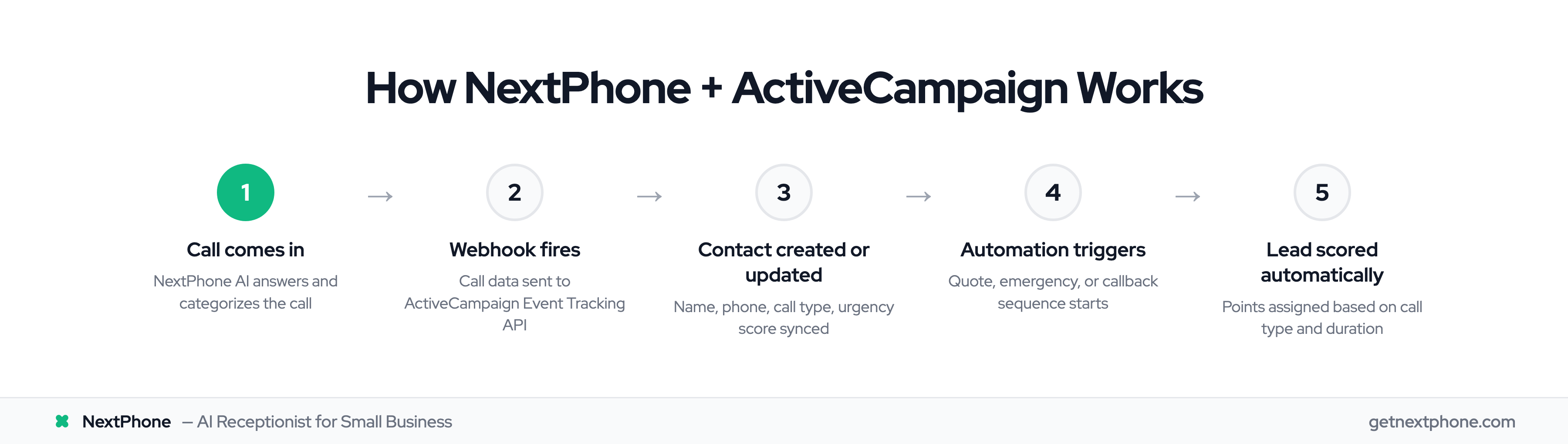
The flow:
- Call comes in — NextPhone AI handles it
- AI collects caller info and categorizes call type
- Call ends — HTTP webhook fires
- ActiveCampaign receives event data via API
- Automation triggers based on event type
- Contact enters appropriate campaign
What makes this powerful: Events can have properties. A "phone_call" event might include:
- Call duration
- Call type (emergency, quote, routine)
- Services discussed
- Urgency level
- Caller sentiment
ActiveCampaign can then trigger different automations based on these properties. Not just "a call happened" but "an emergency HVAC call lasted 8 minutes and caller needs service today."
What Data Gets Sent
NextPhone's webhook sends structured data to ActiveCampaign:
Contact fields:
- Name
- Phone number
- Email (if provided)
- Custom fields (service needed, location, etc.)
Event data:
- Event name: "phone_call"
- Event value: Call type or priority score
- Event timestamp
- Custom event properties (call duration, category, urgency)
This data becomes available for:
- Automation triggers
- Lead scoring rules
- Segmentation conditions
- Personalized campaign content
Lead Scoring from Call Data
ActiveCampaign's lead scoring assigns points based on contact behavior. Website visits, email opens, form submissions—all contribute to a contact's score. Phone calls should too.
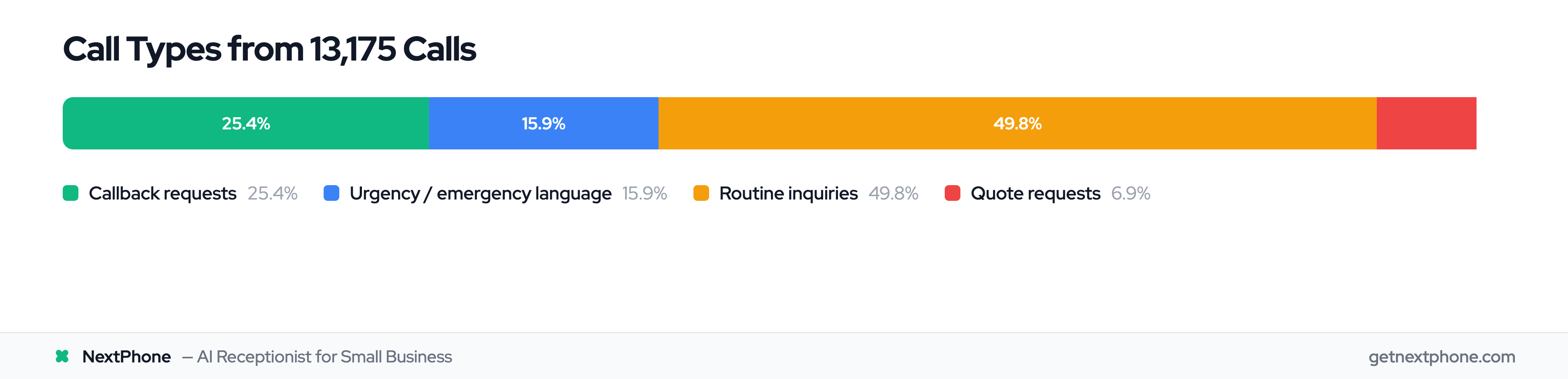
Our analysis of 130,175 calls shows distinct patterns:
- 15.9% contain urgency language (emergency, urgent, ASAP) — High-intent leads
- 6.9% are quote or estimate requests — Ready to buy
- 25.4% request callbacks — Warm leads needing follow-up
You can use these patterns to score leads automatically.
Example scoring rules in ActiveCampaign:
- Contact completes event "phone_call" with event value "emergency" — +10 points
- Contact completes event "phone_call" with event value "quote_request" — +8 points
- Contact completes event "phone_call" with event value "callback_requested" — +5 points
- Contact completes event "phone_call" with event value "routine_inquiry" — +3 points
Calls with longer duration? Add bonus points:
- Call duration >5 minutes — +2 points (engaged conversation)
- Call duration >10 minutes — +5 points (very engaged)
Over time, contacts who call multiple times or have high-value call types rise to the top of your lead list automatically. Sales team sees highest-scored leads first.
Automation Triggers You Can Build
Once call events flow into ActiveCampaign, you can trigger automations based on call type. Here are three proven workflows.
Quote Request Campaign
Trigger: Contact completes event "phone_call" with property "call_type" = "quote"
Automation sequence:
- Wait 1 hour (let them think)
- Send email: "Thanks for calling! Here's what happens next"
- Wait 2 days
- Send email: Portfolio of similar projects
- Wait 3 days
- Send email: "Limited-time offer: 10% off quotes accepted this week"
- If no response, tag as "cold_quote" and move to long-term nurture
Result: Systematic follow-up on every quote request. In our data, 6.9% of calls are quotes—for a business getting 40 calls/month, that's 3 quote opportunities automated.
Emergency Follow-Up Workflow
Trigger: Contact completes event "phone_call" with property "urgency" = "high"
Automation sequence:
- Immediate: Send SMS + email confirmation ("Technician dispatched, ETA 30 min")
- Next day: Send email: "How did we do? Leave a review"
- Wait for review response
- If positive review — Thank you email + referral request
- If no review — Gentle reminder
- 1 week later: Send email: "Prevent future emergencies with our maintenance plan" (upsell)
Result: Emergency calls (15.9% of total) get immediate confirmation and fast path to reviews. Higher review rate = more social proof.
Callback Nurture Sequence
Trigger: Contact completes event "phone_call" with property "callback_requested" = true
Automation sequence:
- Immediate: Add tag "callback_pending"
- 4 hours later: If no outbound call logged, send reminder to sales team
- Next day: Send email: "We tried calling you back—here's our direct line"
- Wait 3 days
- Send email: Educational content related to their inquiry
- Wait 1 week
- Add to regular newsletter list
Result: 25.4% of callers request callbacks. This automation ensures they don't get forgotten even if you miss the callback window.
Setup Guide: Connect NextPhone to ActiveCampaign
You'll need an ActiveCampaign account (any plan works) and 15 minutes.
Step 1: Get ActiveCampaign API Credentials
Log into ActiveCampaign — Settings — Developer — API Access. Copy two things:
- API URL (looks like:
https://youraccountname.api-us1.com) - API Key (long string of letters/numbers)
You'll also need an Event Key if using Event Tracking API. Found in the same Developer section.
Step 2: Configure NextPhone Webhook
In NextPhone dashboard — Integrations — HTTP Webhooks — Add New.
Settings:
- Name: "ActiveCampaign Event Tracking"
- Trigger: "After call ends"
- Method: POST
- URL:
https://youraccountname.api-us1.com/api/3/contactTags
Headers:
Api-Token: YOUR_API_KEY
Content-Type: application/json
Body Template (JSON):
{
  "eventName": "phone_call",
  "eventData": "[call_type]",
  "eventValue": "[urgency_score]",
  "contact": {
    "email": "[email]",
    "firstName": "[first_name]",
    "phone": "[caller_number]",
    "fieldValues": [
      {
        "field": "call_duration",
        "value": "[duration]"
      },
      {
        "field": "call_type",
        "value": "[call_type]"
      }
    ]
  }
}
Save and activate.
Step 3: Create Automation in ActiveCampaign
Go to Automations — New Automation — Start from scratch.
Trigger: Contact completes an event — Event name = "phone_call"
Add condition: If event data = "quote" (or whatever call type you're targeting)
Add actions: Send email, add tag, adjust lead score, notify sales team, etc.
Step 4: Test It
Make a test call to your NextPhone number. Provide an email when asked. End the call.
Within 10 seconds, check ActiveCampaign:
- Contact should be created/updated
- Event "phone_call" should appear in contact timeline
- Automation should trigger (check automation log)
If it works, you're live.